 Cupcake Directive
Play now
Your first level
Create it
Open COMMUNITY LEVELS, then the MY LEVELS tab, and press CREATE NEW LEVEL. Give it a name.
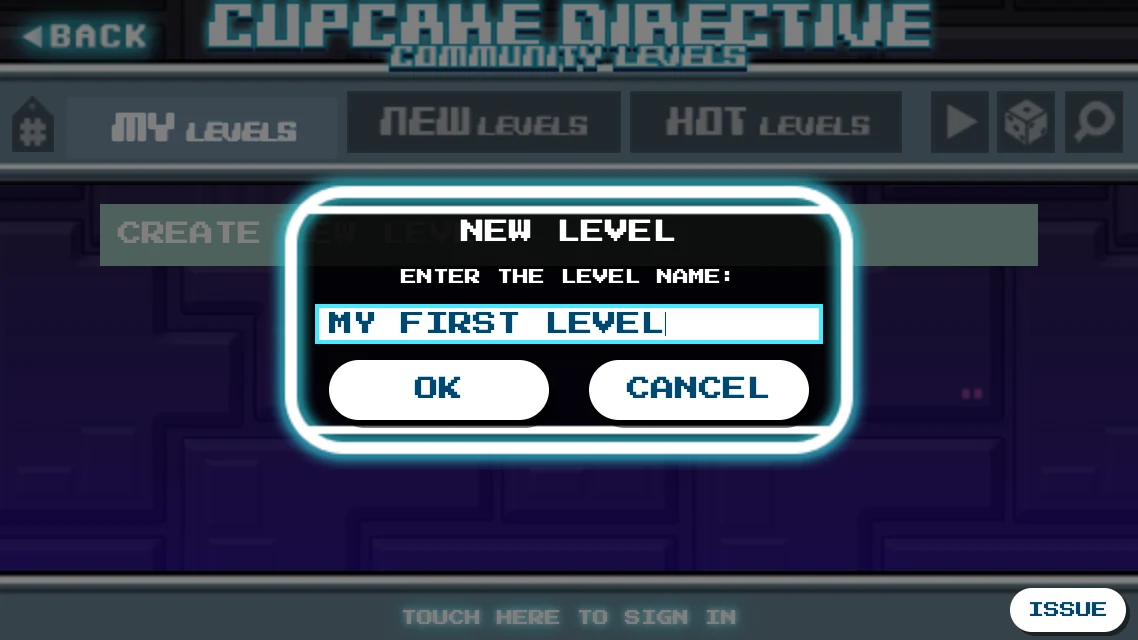
Naming a new level Meet the editor
You start with only Robot and the cupcake, floating in empty space. Drag either one to move it.
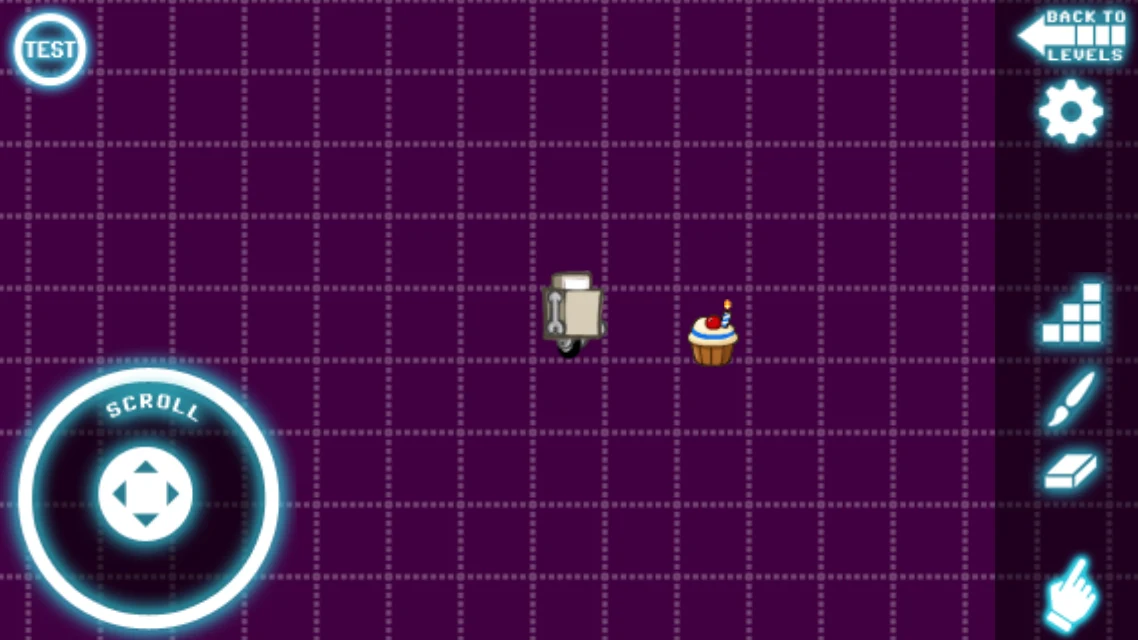
A new level Lay a floor
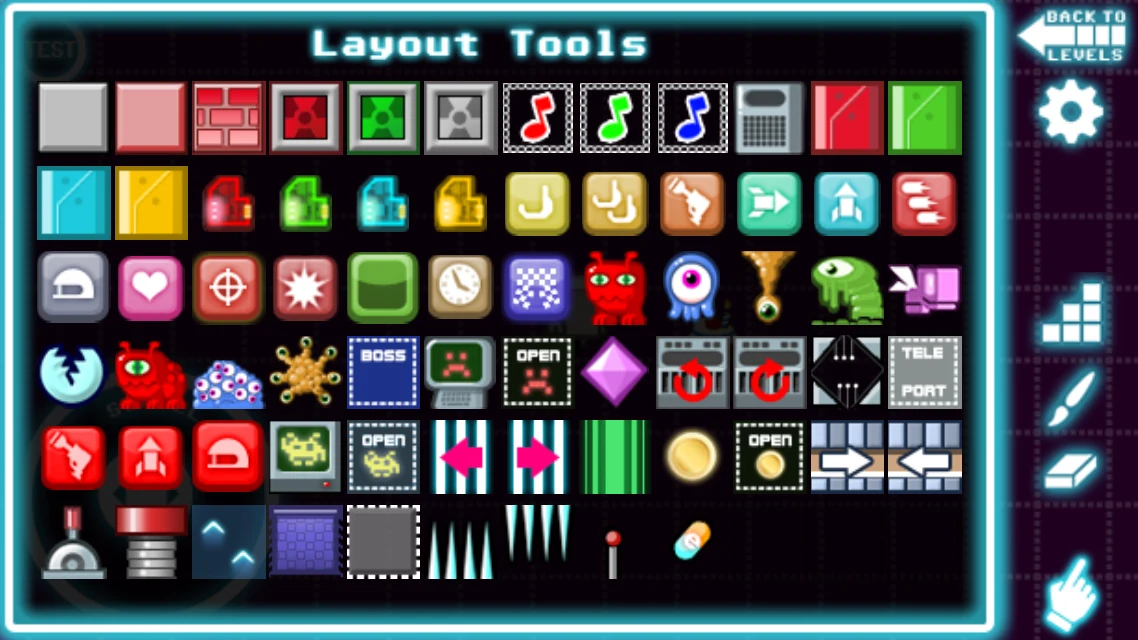
Press the stairs icon on the right to open Layout Tools, pick the plain gray block, and drag across the grid.
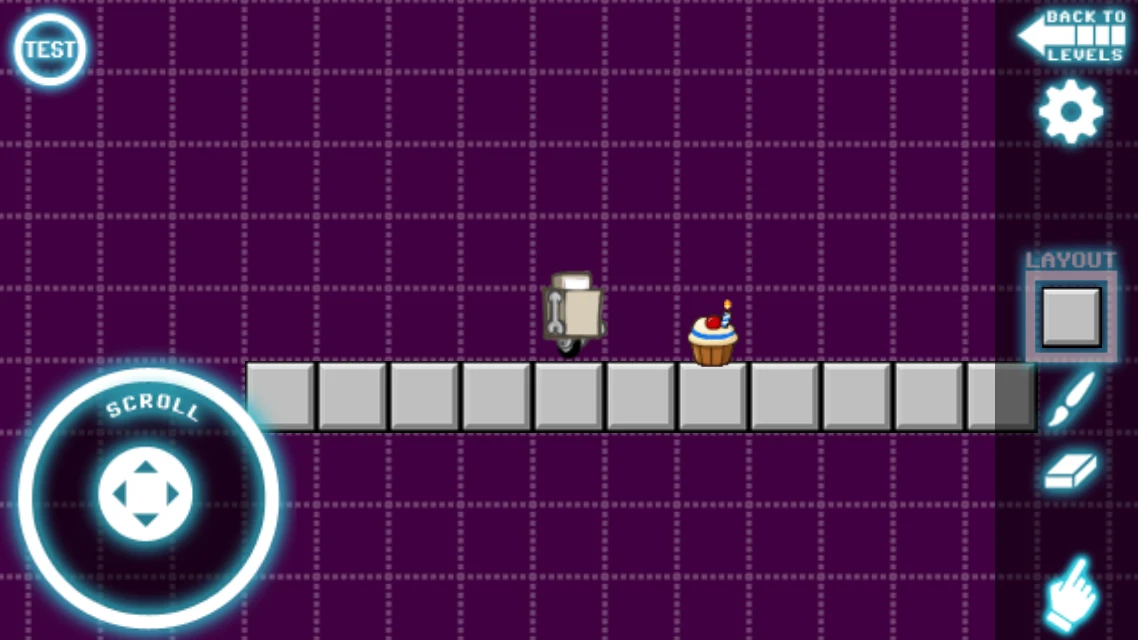
A floor under Robot and the cupcake Add something to do
Open Layout Tools again for each piece. Here we placed a computron at the start, a jump app ahead, and a red guy past the cupcake.
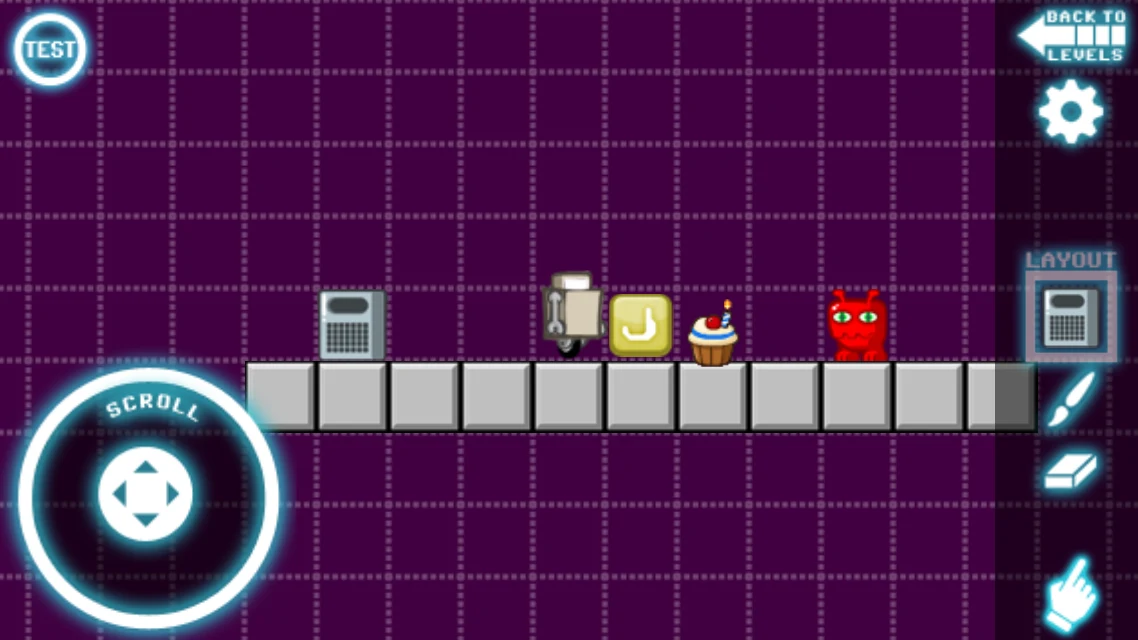
A checkpoint, an app and a creature Try it
Press TEST at the top left. Your level plays as it will for everyone, from Robot's start, with the menu and the win screen, and a win counts as its test for sharing. When you win, or press QUIT LEVEL in the menu, you are back in the editor where you left off.
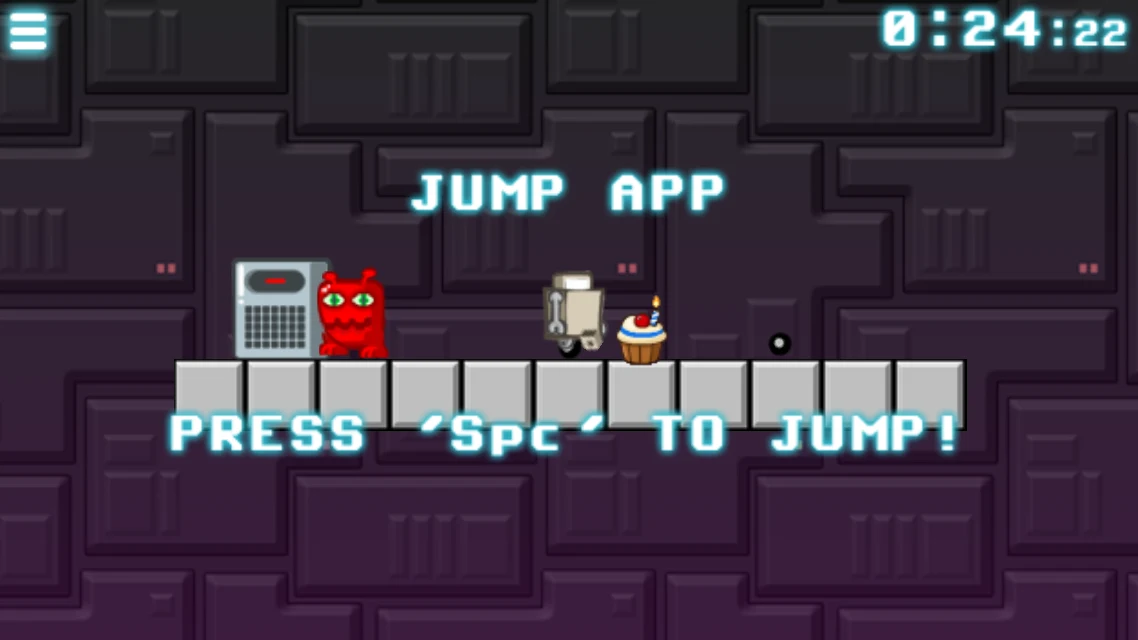
Testing: the app works, and the red guy is coming Finish up
Press BACK TO LEVELS at the top right. Your level is saved, and its details open. Sharing explains the rest.
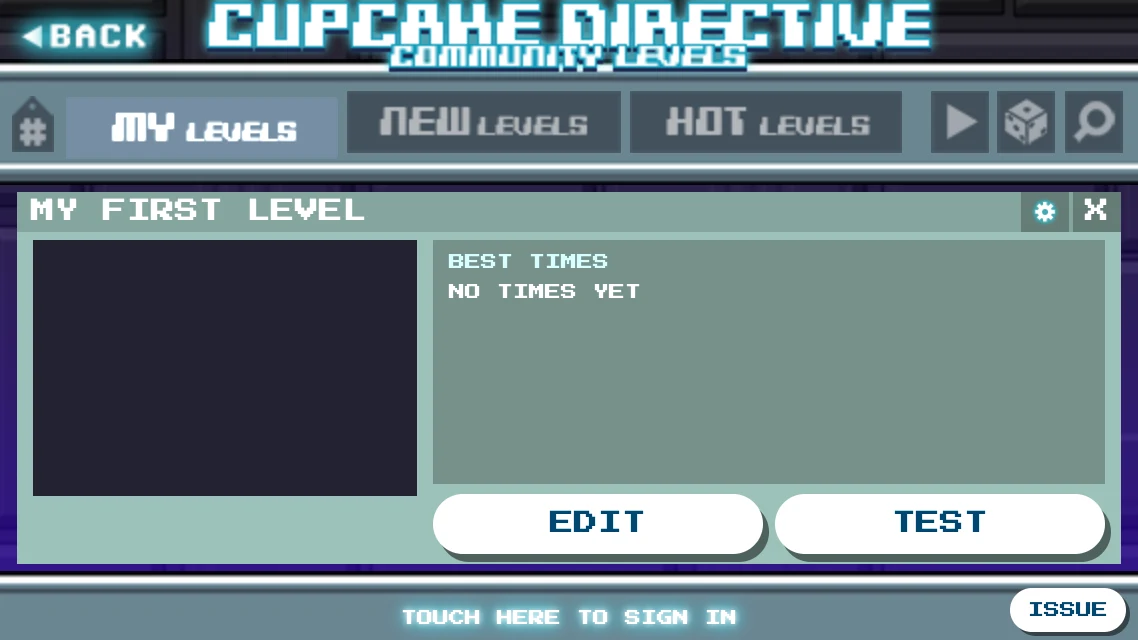
Your level, ready for its test
The editor's tools
| TEST | Top left: play the level, then come back. |
|---|---|
| Back to levels | Top right: saves and leaves. |
| Gear | Level settings. |
| Stairs | Layout tools: the pieces. |
| Brush | Paint tools: the look of walls. |
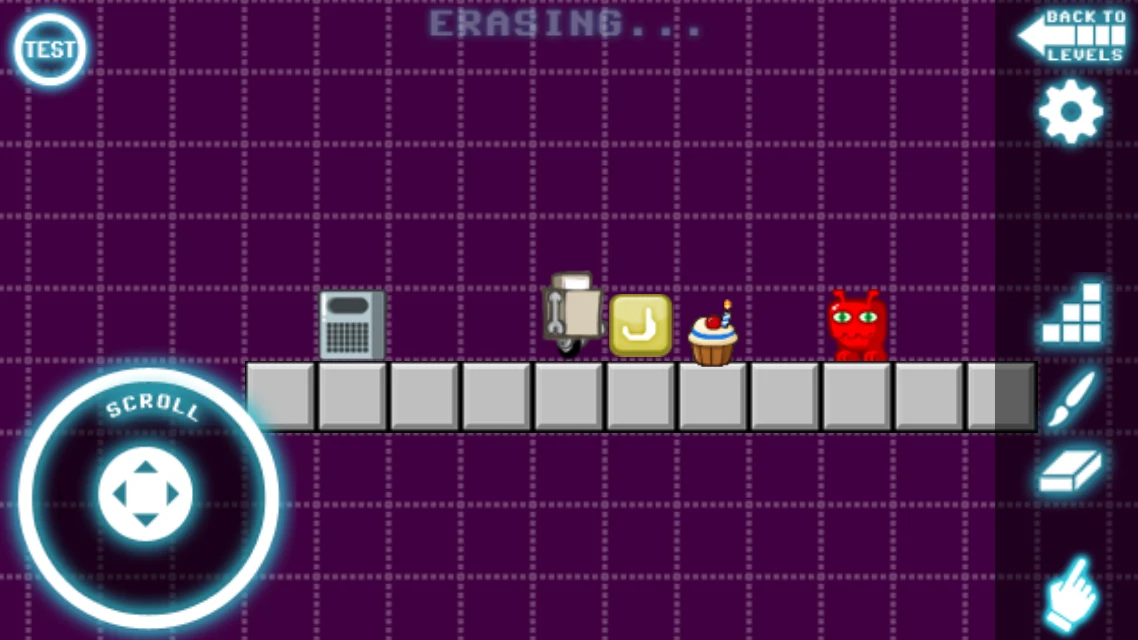
| Eraser | Removes what you touch. Press it again to stop. |
| Hand | Move the view instead of building. |
| Scroll pad | Bottom left: drag to move around. Double-click it to jump to Robot. |
The hand: while it's on, swipe to look around, and pinch or use the mouse wheel to zoom, out to a tenth of the normal size. Press it again, or pick a tool, to go back to building.
Paint
Layout decides what a block does. Paint decides how it looks. Pick a style and drag over blocks; edges and corners join up by themselves. Auto-fix nearby tiles also adjusts the tiles around where you paint.
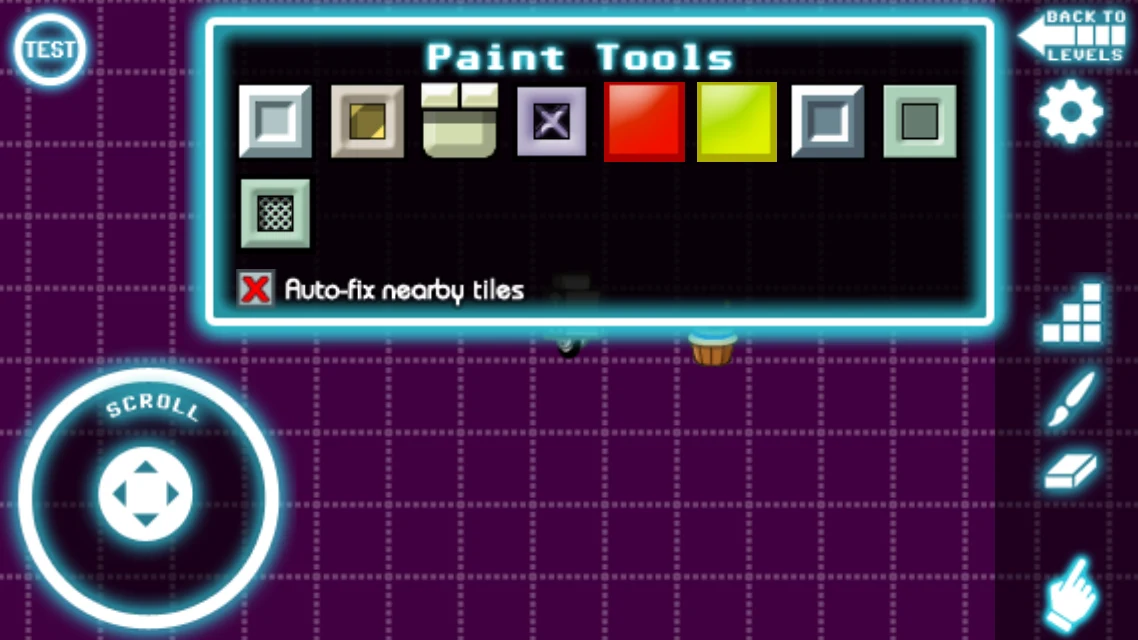
Painting goo with the red or green style sets the goo's color.
All the pieces
The apps and the creatures are on the Playing page. Here is the rest of the palette.
Blocks

Wall Solid. Paint it any way you like.

Goo Hot liquid. Paint it red or green.

Bricks Smashed by a helmet or an explosion.

Explosive crate Blows up when shot.

Gray crate Blows up only in another explosion.

Acid crate Melts when shot.

Gates Red, green, blue and gold. Stacked pieces open together.

Bitcoin door Opens when all bitcoins are collected.

Boss block Goes away when a boss is beaten.

Virus door Opens when its virus computer is cured.

Computer door Opens when a haxxor cheers up its computer.

Secret block Looks solid, but Robot passes through.
Movement

One-way walls Pass only in the arrow's direction.

Conveyors Carry Robot along. Set their speed in the level settings.

Zoinger A spring. Stack it to make it taller.

Cosmic air Lowers gravity while Robot is inside.

Velcro Sticks to Robot once it has the velcro app.

Slam wall Slows Robot down and stops a rocket.
Everything else

Computer Sad until Robot arrives with a haxxor app. Happy, it opens its doors.

Virus computer Shoot it to cure it, which opens the virus doors.

Music notes Change the song when Robot touches them: three songs.

Telematics Two versions that turn opposite ways. Slots and pads join the nearest one.

Crystal slot Takes a quantum crystal.

Telepad Teleports Robot when powered.

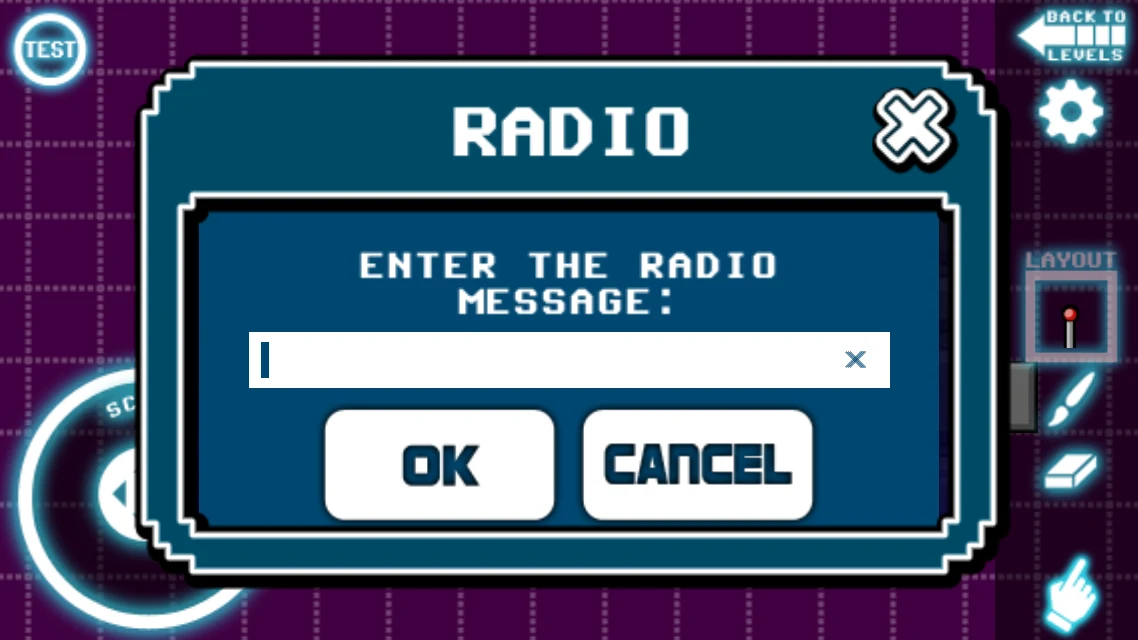
Radio Shows your message of up to 40 characters.

Energy pill Creatures that reach it grow stronger.
Level settings
Press the gear in the editor.
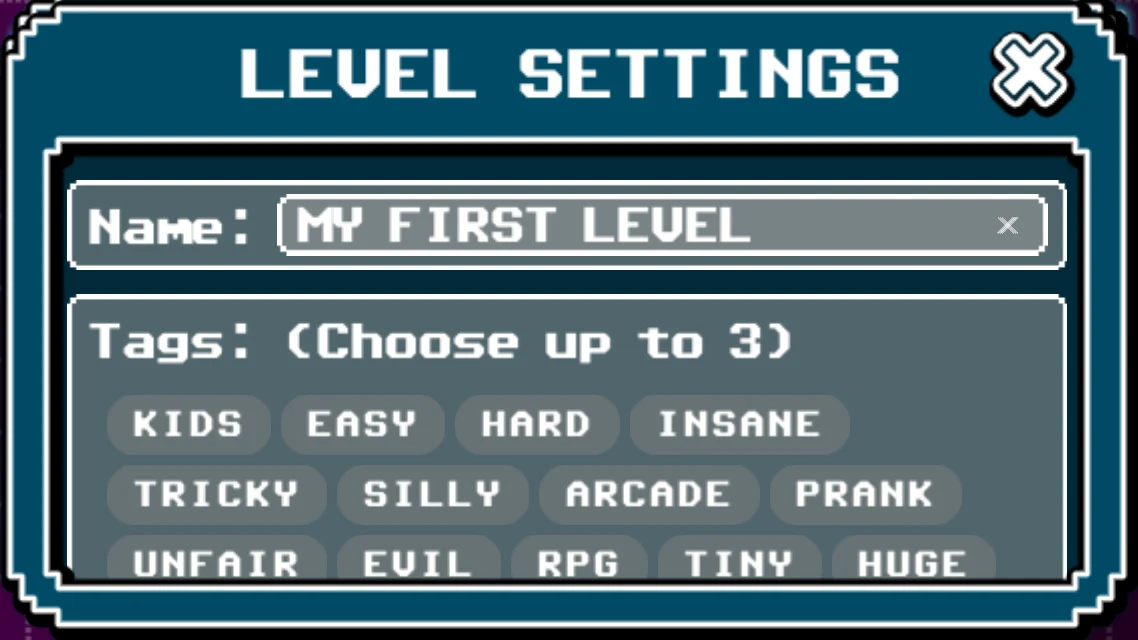
- Name: the level's name.
- Tags: up to three. A level needs at least one to be shared, and tags are how players find it.
- Belt speed: how fast the conveyors run.
- Customize music: your own songs, where available.
- Reset to state as shared: throws away your changes since you shared the level. It's dimmed until there is something to reset.
Making it good
- Put a computron before every hard part. Nobody enjoys repeating the easy bit.
- Teach one thing at a time: give Robot an app, then a safe place to try it.
- Test often, and play your level to the end before sharing it.
- Say hello with a radio. It's also a good place for hints.